
Process Documentation That People Actually Use (Not Another PDF Nobody Reads)

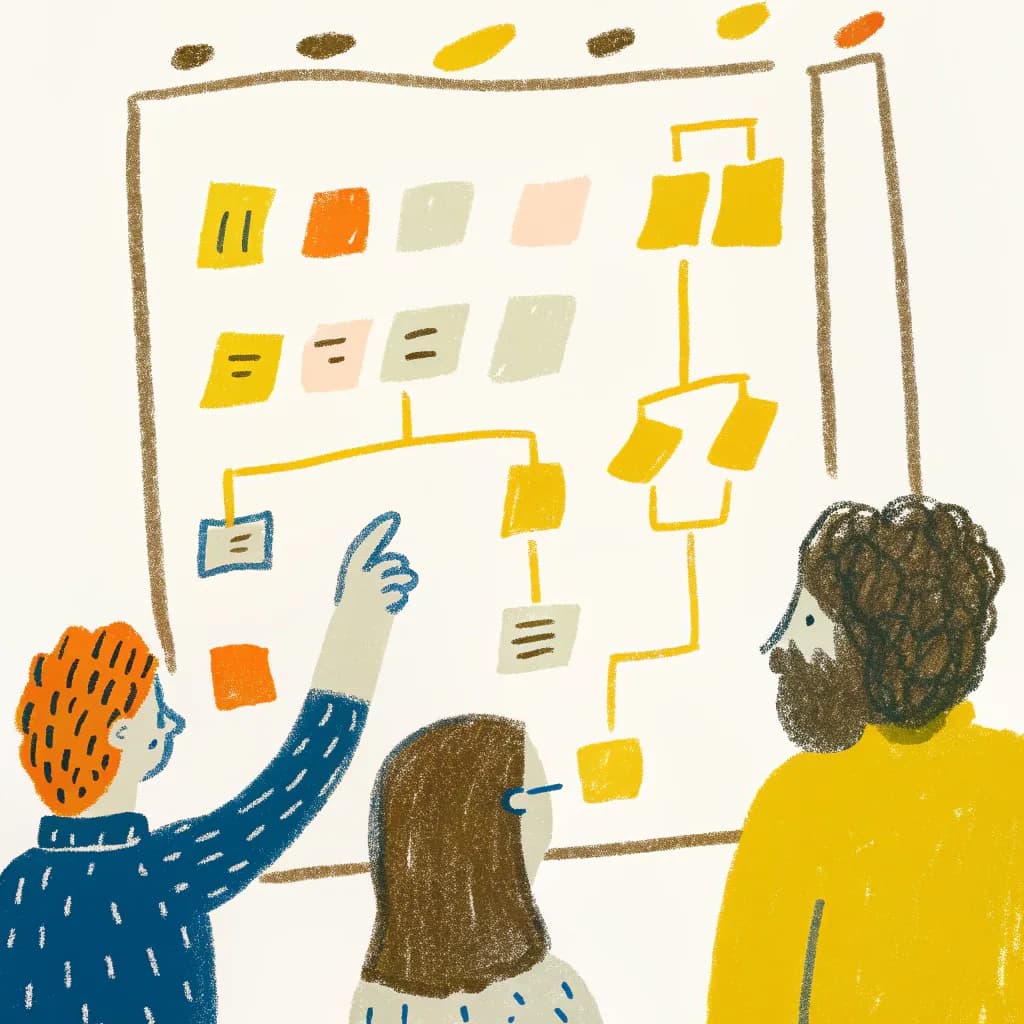
Process Documentation That People Actually Use (Not Another PDF Nobody Reads)
Ever spend hours documenting a process, only to watch people... completely ignore it and ask you questions instead?
Or create a beautiful 20-page procedure manual that lives untouched in a shared drive?
Here's the brutal truth: Most documentation fails not because it's wrong, but because it's UNUSABLE.
But visual process documentation? People actually reference it, follow it, and yes-even appreciate it!
Why Traditional Documentation Fails
The typical process document:
- 10+ pages of text
- Buried in a folder somewhere
- Written in formal, boring language
- No clear starting point
- Impossible to scan quickly
What actually happens:
- Nobody reads it
- People ask you instead
- Inconsistent execution
- Errors multiply
- Your time gets wasted answering the same questions
The "One-Page Visual Process" Revolution
Last year, our customer support team had a 47-page process manual. Response times were inconsistent, new hires took weeks to learn the ropes.
I compressed it into one visual flowchart. One page. Clear decision points. Visual cues for common situations.
Results:
- Training time cut from 2 weeks to 3 days
- 40% faster response times
- 85% reduction in "how do I handle this?" questions
- Team actually referenced it!
Same information. Completely different format. Transformative results.
The Elements of Usable Visual Documentation
1. Clear Starting Point Big, obvious: "START HERE"
2. Visual Flow Arrows show the path. No hunting for "step 7."
3. Decision Points Diamond shapes for "if this, then that."
4. Visual Cues Icons, colors, highlights for emphasis.
5. Quick Reference Can be understood in under 60 seconds.
6. Accessible Printed and posted, or one-click digital access.
Visual Documentation Format #1: The Process Flowchart
Best for: Step-by-step procedures with decision points
Example: Customer Refund Process
Customer requests refund
         ↓
    Within 30 days?
    /           \
  YES            NO
   ↓              ↓
Full refund   Store credit only
   ↓              ↓
Process       Process
payment       credit
   ↓              ↓
Send          Send
confirmation  confirmation
Why it works: Anyone can follow this without training. Decision points are explicit. No ambiguity.
Visual Documentation Format #2: The Annotated Screenshot Guide
Best for: Software processes, digital workflows
How to create:
- Take screenshots of each step
- Add numbered arrows showing where to click
- Add text boxes with brief explanations
- One page per major section
Example: "How to Submit Expense Report"
[Screenshot 1]: Dashboard → Arrow pointing to "Expenses" button → "1. Click here"
[Screenshot 2]: Form → Arrows pointing to fields → "2. Fill these out"
[Screenshot 3]: Review screen → Arrow pointing to "Submit" → "3. Review and submit"
Pro tip: Actually print these and post near desks for frequently-done tasks!
Visual Documentation Format #3: The Cheat Sheet
Best for: Quick reference info, key facts, common scenarios
Format: One page, visual grid or table
Example: Social Media Response Guide
| Scenario | Response Time | Who Handles | Template | | ------------ | --------------- | ----------- | ------------------ | | 🎉 Positive | Within 4 hrs | Anyone | "Thanks!" | | ❓ Question | Within 2 hrs | Support | Link to FAQ | | 😡 Complaint | Immediate | Manager | "DM us" | | 🔥 Crisis | Drop everything | Leadership | Emergency protocol |
Icons make it scannable. Table makes it organized. Result: instant clarity!
Visual Documentation Format #4: The Video with Chapters
Best for: Complex processes, demonstrations
Why visual: People can watch, pause, rewatch specific sections.
Make it usable:
- Clear chapter markers (0:00 Intro, 0:45 Step 1, etc.)
- Short (under 5 minutes if possible)
- Show, don't just tell
- Provide written summary alongside
Pro tip: Record your screen while narrating. No fancy equipment needed!
The "If This, Then That" Quick Reference
Perfect for: Exception handling, troubleshooting
Visual format: Decision tree or table
Example: IT Help Desk First Response
User reports issue
      ↓
 Is system down?
   /        \
 YES        NO
  ↓          ↓
Alert     Can you
team      replicate?
          /      \
        YES      NO
         ↓        ↓
    Follow    Ask for
    procedure details
Keep it visible. Every help desk station should have this posted.
Creating Scannable Documentation
The 3-second test: Can someone find what they need in 3 seconds?
How to make documentation scannable:
- ✓ Use clear headers (large text)
- ✓ Number steps obviously (1. 2. 3.)
- ✓ Highlight key info (color boxes)
- ✓ Use icons and symbols
- ✓ Break into small chunks
- ✓ White space is your friend!
What to avoid:
- ✗ Dense paragraphs of text
- ✗ Tiny font
- ✗ Everything looks equally important
- ✗ Hidden in the middle of a document
The "Job Aid" Approach
Think: What would help someone DO this task right now?
Not: Comprehensive explanation of the theory behind it.
Example: Sales Call Checklist (Visual Job Aid)
BEFORE CALL:
□ Research company (5 min)
□ Review their previous interactions
□ Prepare 3 questions

DURING CALL:
□ Introduction (name, company, reason)
□ Discovery questions
□ Present relevant solution
□ Handle objections
□ Next steps agreed

AFTER CALL:
□ Update CRM (immediately!)
□ Schedule follow-up
□ Send promised materials
Print this. Sales team keeps it next to their phone/computer. Instant performance improvement!
Visual Documentation for Different Industries
Restaurant/Service
- Opening/closing checklists (visual)
- Food prep flowcharts
- Customer service decision trees
- Emergency procedures (fire, injury, etc.)
Healthcare
- Patient intake flowcharts
- Treatment protocols (visual steps)
- Safety checklists
- Equipment operation guides
Retail
- Point-of-sale guides (annotated screenshots)
- Returns/exchanges flowchart
- Visual merchandising standards (photos!)
- Loss prevention procedures
Office/Corporate
- Onboarding roadmap (timeline)
- Approval process flowcharts
- System access guides
- Meeting protocols
The "One-Pager" Principle
Goal: Fit documentation on one page (or one screen).
Why: If it requires scrolling or flipping, people won't use it.
How:
- Focus on ONE process per page
- Link to additional details if truly needed
- Use both sides of paper if physical
- Zoom out mentally: "What are the 5-7 key steps?"
Exception: Complex processes can have multiple one-pagers, each covering a section!
Making Documentation Findable
The best documentation is useless if nobody can find it.
Physical documentation:
- Post where it's needed (not in a binder on a shelf)
- Laminate frequently-used guides
- Color-code by department or function
Digital documentation:
- Centralized, searchable location
- Consistent naming convention
- Link from multiple places (wiki, Slack, onboarding docs)
- Include in relevant tool tips or help sections
The "Living Document" Approach
Process documentation shouldn't be static.
Make it easy to update:
- Digital formats allow quick edits
- Add "Last updated" date at top
- Include "suggest improvement" contact
- Review quarterly-processes change!
Visual formats make this easier: Edit one flowchart vs. rewriting pages of text!
Training with Visual Documentation
Old way: Sit new hire down. Walk through written procedures. Hope they remember.
Visual way:
- Show them the visual process doc
- Walk through it together ONCE
- Let them reference it while doing the task
- They learn by doing with instant visual reference
Result: Faster learning, more confidence, better retention!
Common Documentation Mistakes (And Fixes)
Mistake #1: Too Much Detail
Fix: Create two versions. Quick reference visual + detailed backup doc for edge cases.
Mistake #2: No One Knows It Exists
Fix: Actively share. Reference it in training. Link to it in tools. Make it visible!
Mistake #3: Written for the Expert, Not the Beginner
Fix: Test it on someone who doesn't know the process. If they struggle, simplify!
Mistake #4: Never Updated
Fix: Schedule quarterly reviews. Assign an owner. Make updating part of someone's role.
The Documentation That Documents Itself
Super advanced: Some tools let you record processes AS you do them, then auto-generate documentation.
But honestly? A simple visual flowchart made in 10 minutes often beats a complex auto-generated 40-page manual.
Start simple. Add complexity only if needed.
Your Documentation Challenge
Think of ONE process at your work (or home!) that:
- People constantly ask questions about
- Gets done inconsistently
- Causes errors or confusion
- Takes forever to train
Create visual documentation for it:
- Could be a simple flowchart
- Could be annotated screenshots
- Could be a decision tree
- Could be a quick reference table
Make it one page. Test it on someone. Refine based on feedback.
Then watch: Questions decrease. Consistency increases. Your time frees up!
Ready to create documentation people actually use? AutoDiagram makes it easy to turn process descriptions into clear, professional flowcharts and diagrams → Document Better
Quick FAQ
Q: Should I document EVERY process?
A: No! Document processes that are: frequently done, prone to error, or require training. Let simple, obvious stuff be undocumented.
Q: What about compliance requirements that demand detailed documentation?
A: Create the required detailed version. ALSO create a visual quick-reference version for actual daily use.
Q: How do I get people to actually use documentation?
A: Make it so easy and helpful they'd be foolish not to! When it saves them time/frustration, they'll use it.